Fork import
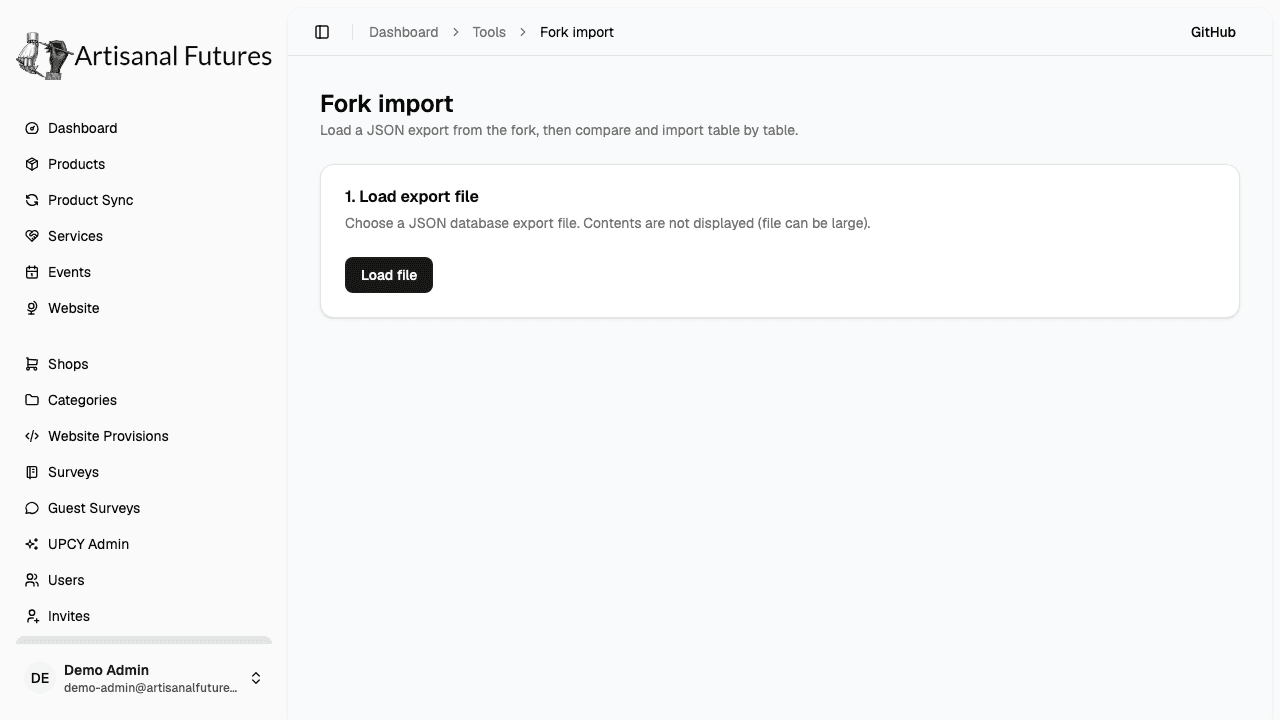
Compare a JSON database export table by table against this environment and selectively import rows, from Admin → Fork Import.
What it does
Fork Import lets you load a JSON database export (for example, a copy of production data, or a fork's data) and, one table at a time, compare it against this environment's database and import whichever rows you choose. It's a diff-and-import tool, not an all-or-nothing restore.
Where to find it
Go to Fork Import in the admin sidebar (/admin/fork-import). This page is admin-only.
When to use it
Use this to bring a dev or staging environment up to date with real data from another environment — for example, syncing a staging fork with a recent production export so you can test against realistic data, or pulling specific rows (a handful of shops, a category tree) from one export into this database without overwriting everything.
How it works
- Load export file — choose a JSON export file. Its contents aren't displayed (the file can be large); only the list of tables and row counts are shown.
- Select table — pick one table from the file (Product, Shop, Category, User, and so on) and click Compare to DB.
- Compare result — the tool shows, for that table:
- New rows (exist in the file, not in this DB)
- Updated rows (exist in both, but differ)
- Unchanged count
- For auth tables (see below), a simpler "new vs. already in DB" count instead of new/updated
- If any row references another record that doesn't exist in this DB yet (for example, a Product pointing at a Shop id this database doesn't have), a missing references panel lets you reassign each missing id to an existing record in this DB — or leave it unmapped, which skips (errors) those rows on import.
- For Product and Service tables specifically, you can filter the rows shown/imported down to a single store.
- Every new/updated row has a checkbox — uncheck any you don't want. By default, everything comparable is selected.
- Click Import N selected rows to apply them.
Auth tables are create-only
User, Account, Session, and VerificationToken are treated specially: rows are mapped into this app's auth schema and only ever created, never updated. If a User/Account/Session/VerificationToken already exists in this DB, the import leaves it alone rather than overwriting it. Every other table supports both creating new rows and updating existing ones that changed.
Because auth rows are create-only, re-importing the same export won't fix or overwrite an auth row you've already changed locally — only genuinely new auth rows come in.
Cautions
- This tool writes directly to this environment's database. Compare before you import, and use the missing-reference and store-filter controls to scope what actually gets applied.
- Unmapped missing references are imported anyway and will error per-row rather than being silently skipped — check the error list after an import (
created,updated, anderrorsare all reported). - Only run this against an environment you intend to overwrite/extend with the export's data — not against production, unless the export is production's own data and you know exactly what you're syncing.