User management
View every platform user, change their role, and send password resets from Admin → Users.
Where to find it
Go to Users in the admin sidebar (/admin/users). This page is admin-only — artisans don't see it in their sidebar, and the page redirects anyone without the Admin role to /unauthorized.
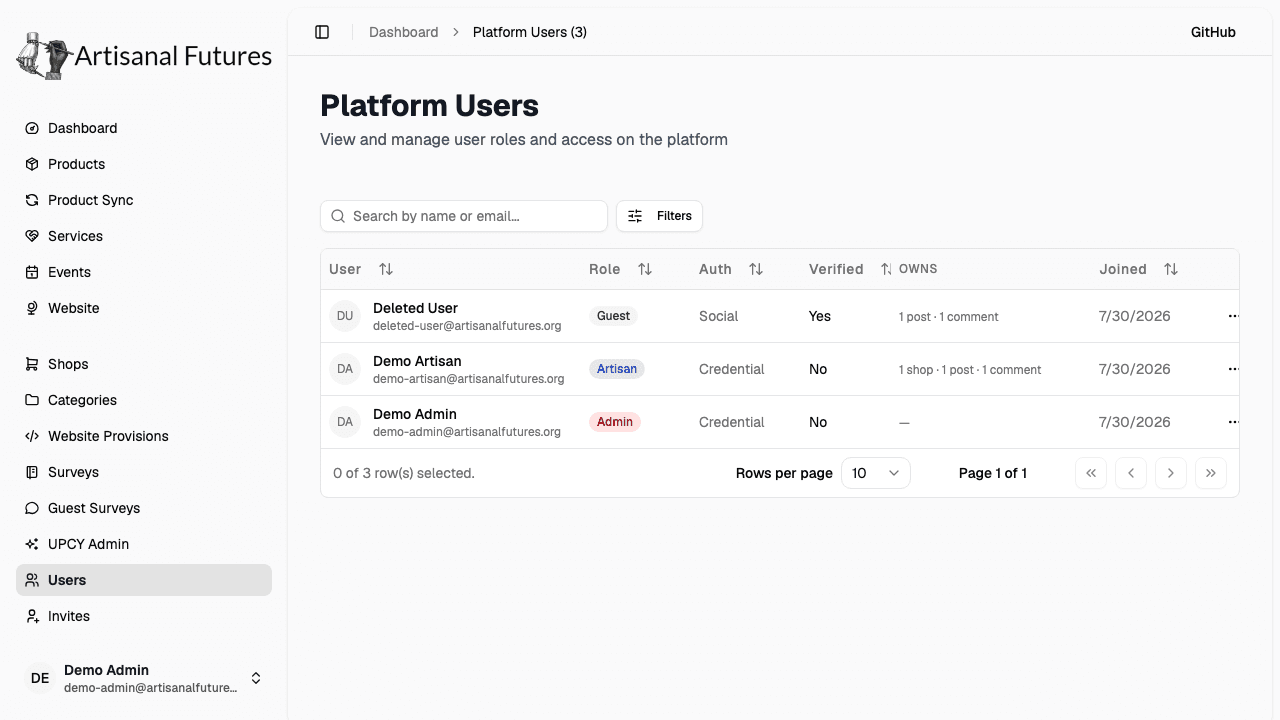
What the table shows
Each row is one platform user, with:
- User — avatar, name, and email
- Role — a colored badge (Admin, Artisan, Manager, Driver, User, or Guest)
- Auth — whether they sign in with Credential (email + password) or a Social provider (Discord, Google, Auth0)
- Verified — whether their email is verified
- Owns — a quick count of shops, posts, and forum comments they have
- Joined — account creation date
Click a row's ⋯ menu to open View details, which takes you to that user's detail page (/admin/users/[id]). The detail page repeats the header info and adds sections for their shops (with product/service counts), forum activity, surveys (artisan business surveys and a guest survey count), website provisions, and upcycle results — whichever of those the user actually has.
Changing a user's role
- From the Users table (or a user's detail page), open the ⋯ menu and choose Change role, or click the Change role button on the detail page.
- Pick a role from the dropdown: User, Admin, Artisan, Driver, Guest, or Manager.
- Click Save role.
Two guardrails are enforced on the server, not just the UI:
- You can't change your own role from this dialog — you'll get "You cannot change your own role here."
- You can't demote the last remaining Admin. If there's only one Admin left, promote a second person to Admin first, then demote the first.
Changing a role immediately changes what that user can access — for example, promoting someone to Admin gives them everything in this section; demoting an Artisan to Guest removes their shop-management access.
Deleting a user
Deleting a user cannot be undone.
Open a user's row ⋯ menu and choose Delete user (shown in red), or click the Delete user button on that user's detail page. Either opens a confirmation dialog showing exactly what will happen, with real counts: the user's shops (and all their products and services), their events, their notifications and AI-generation history, and their community memberships and votes are permanently deleted.
Their forum posts and comments are not deleted — they remain visible, reassigned to a placeholder account named Deleted User.
To enable the red Delete button, the admin has to type the user's email into the dialog.
A few guardrails are enforced:
- You can't delete your own account.
- You can't delete the last remaining Admin.
- The Deleted User placeholder itself can't be deleted.
After the first deletion, a Deleted User row (Guest role) appears in the Users table — that's the placeholder, and it's expected. Leave it alone.
Sending a password reset
Click Send reset password (in the row menu or on the user's detail page) to email them a password-reset link.
This only works for users who signed up with email + password (a "credential" account). The button is disabled for users who only ever signed in with a social provider, since they have no password to reset.
Related
New users don't get created here — they come in through invites. This page is for managing people already on the platform.