Admins
A tour of the Artisanal Futures admin area — how to get in, what's in the sidebar, and where platform-wide tools live.
Who this section is for
This section is for people who manage the Artisanal Futures platform itself — not just a single artisan's shop. If you have the Admin role, you can create invites, manage every user and shop, edit the category tree, review surveys, and more.
If you only manage your own shop (the Artisan role), you still use /admin — but you'll see a smaller sidebar with just your shop's tools (Dashboard, Products, Services, Events, Website, My Shop). The pages in this section (Users, Invites, Categories, Website Provisions, Surveys, Guest Surveys, UPCY Admin, Fork Import) are admin-only.
Getting to the admin area
- Sign in to Artisanal Futures.
- Go to
/admin.
You need to be signed in to reach /admin at all — signed-out visitors are redirected to sign in first. Once signed in, you need either the Artisan or Admin role to get past the admin layout; every other role is redirected to /unauthorized. The admin-only pages covered in this section are protected too, but not by that same redirect: Guest Surveys and Upcycling show an "Access Denied" screen to non-admins, and the rest simply fail to load, because the data they fetch sits behind admin-only API procedures.
If you land on "Access Denied" or get redirected to /unauthorized, you don't have the Admin role. Ask a current admin to send you an invite or change your role.
The dashboard
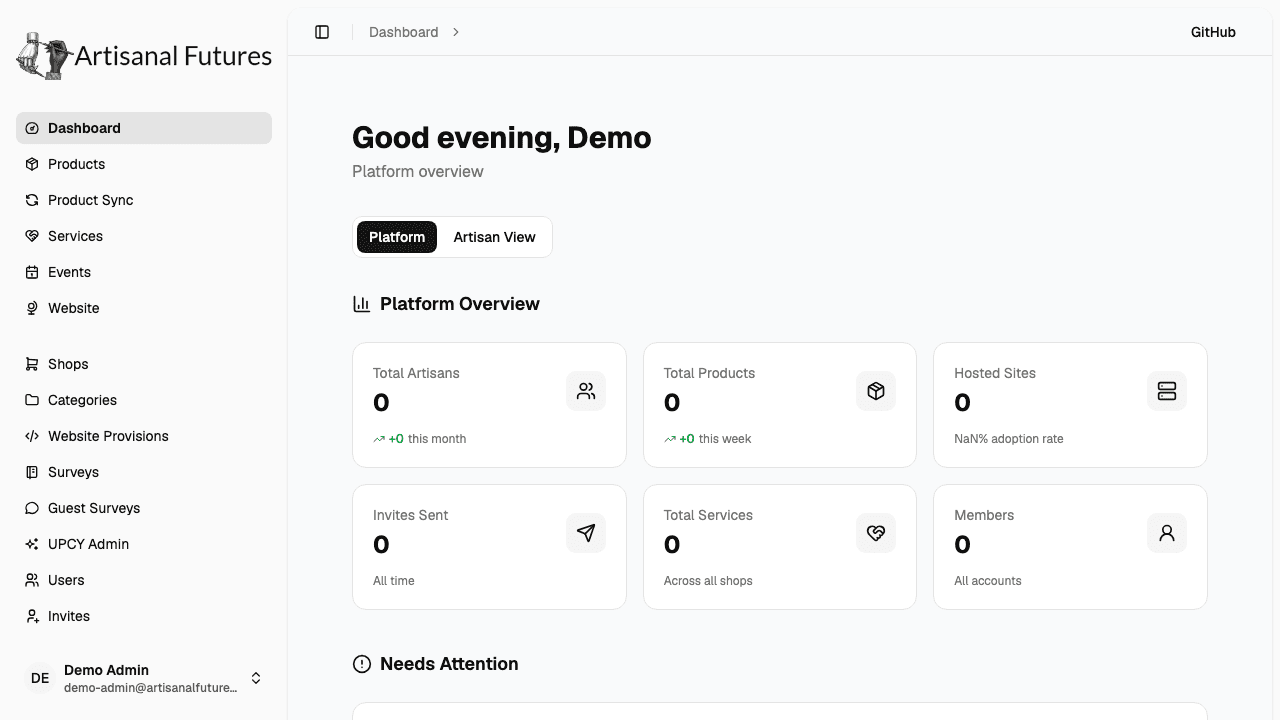
/admin/dashboard is what you land on. As an Admin you start in the Platform view — platform-wide stats like total artisans, products, services, hosted sites, invites sent, and member accounts — with a toggle at the top to switch into an Artisan View that lets you browse any shop on the platform via a shop picker. (Artisans see their own shop-level stats here instead.)
What's in the sidebar
Every signed-in admin/artisan sees this group at the top:
- Dashboard —
/admin/dashboard - Products —
/admin/products - Services —
/admin/services - Events —
/admin/events - Website —
/admin/website - My Shop —
/admin/shops
If your role is Admin, a second group appears below it — platform-wide tools that aren't scoped to a single shop:
- Shops —
/admin/shops(every shop on the platform, not just yours) - Categories —
/admin/categories - Website Provisions —
/admin/website-provisions - Surveys —
/admin/surveys - Guest Surveys —
/admin/guest-surveys - UPCY Admin — links out to the separate UPCY generation app (
generate.dev.artisanalfutures.org/admin); it isn't covered by these docs - Users —
/admin/users - Invites —
/admin/invites - Fork Import —
/admin/fork-import
This second group is simply hidden from the sidebar for non-admins — but as noted above, each of those pages is also backed by admin-only server checks, so hiding the link isn't the only thing standing between a non-admin and the page.
Acting on behalf of a shop
There's no single "become this shop" switch — which shop you're acting on depends on where you are. On the dashboard, the shop picker in Artisan View only changes which shop's stats and nudges you're looking at; it doesn't carry over anywhere else. For products, services, and events, the admin pages list every shop's items in one table with a Shop column, and you choose which shop a new or existing item belongs to using the Select Shop field inside that item's own create/edit form — the same field artisans use for their own shop, except yours lists every shop on the platform instead of just the one you own. For a shop's profile itself, open it directly from the Shops page, since admins can open and edit any shop.
Once you've picked the shop in the relevant form, the rest of the workflow is identical to the artisan guides:
The steps from there are identical to what's documented for artisans.
Product Sync works the same way but is worth calling out on its own: as an admin you see every shop's sync runs, not just your own, and you can change any shop's sync settings — including the allow insecure origin override, which is admin-only since it's a security decision about reaching a store over plaintext rather than a shop preference. You also get a Sync all shops now button that artisans don't have, which runs the same sweep the weekly scheduled job does across every shop at once. The artisan guide is canonical for how syncing, reviewing, and applying a run actually works — see Product Sync.
Where to go next
- User management — view users, change roles, send password resets
- Invites — the only way new people join the platform
- Categories — the product/service category tree
- Surveys — artisan business surveys and guest surveys
- Fork import — sync data from a fork/staging export
- Website provisions — the SimplePress site-building integration
- Upcycling — the legacy UPCY v1 generations admin
- Events — manage shop events shown on the platform