Setting Up Your Shop
Fill in your shop's name, description, contact info, logo, and address, and control whether it's public.
Where to find it
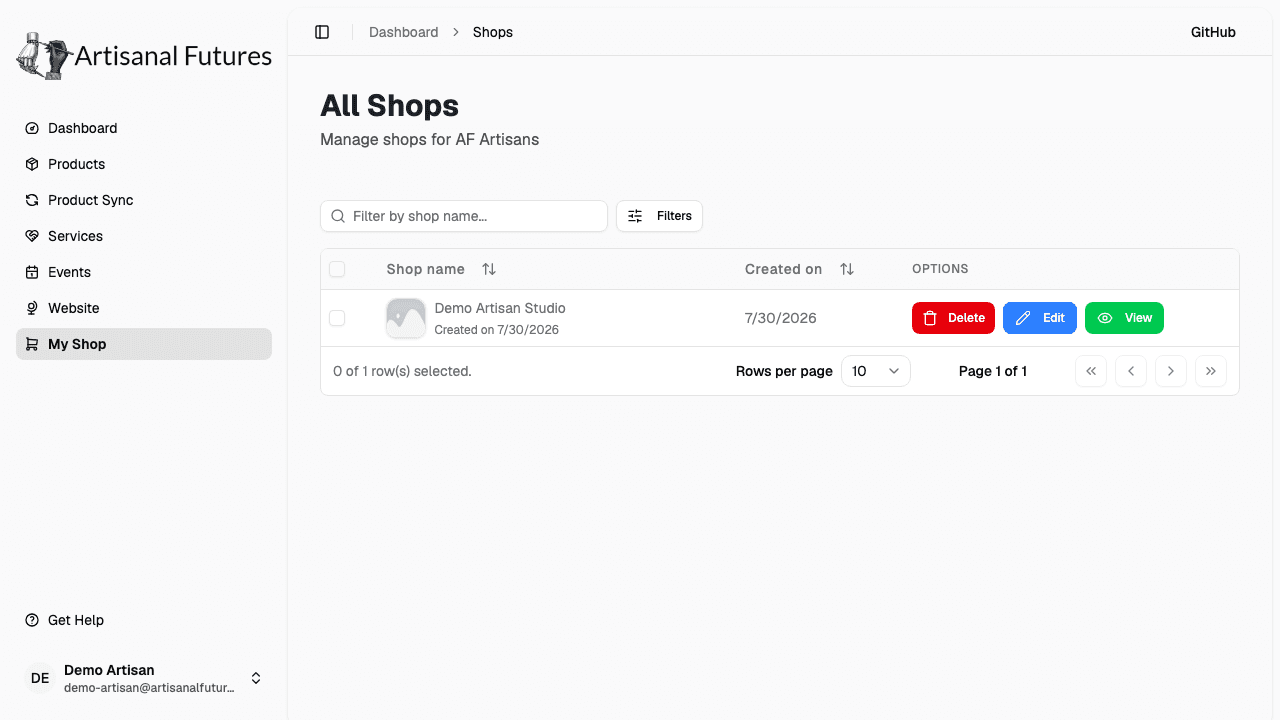
Click My Shop in the left-hand menu, then open your shop from the list. Or, from your Dashboard, click Edit Shop. Either way takes you to your shop's details page.
Prefer not to do this yourself? The Artisanal Futures team can set your shop up for you — just reach out and let them know what you'd like on your shop (see Getting help).
Fill in your shop details
On your shop's details page, you'll find:
Publicly visible — a switch at the top of the page. Turn this on to make your shop appear in the Artisanal Futures directory and at its own page address. Leave it off while you're still setting things up.
Shop Information:
- What is your shop name? — your shop's name (required).
- Tell us a bit about your shop! — a short description.
- What is your shop's website? — your existing website, if you have one.
- What is your shop's public email? — your shop's public contact email.
- What is your shop's public phone number? — your shop's public phone number.
Additional Owner Information:
- Owner Name — your name, the maker behind the shop (required).
- Owner Photo — upload a photo of yourself.
- Share a bit about yourself here! — a short bio.
Shop Branding:
- Logo image — upload your shop's logo.
- Shop Attributes — checkboxes you can select if they apply to your shop: African American Culture, African Culture, African American Civil Rights, Black Owned, Woman Owned, Worker Owned, Community Education, and Food Sovereignty.
Business Address (Optional):
- Street Address, City, State, and ZIP Code — only fill these in if you want your business address listed on your shop page.
When you're done, click Save changes.
Your shop's Website field matters beyond just showing on your page — it's also what the product importer uses to find your online store. See Products.
Deleting your shop
At the bottom of the shop details page there's a Delete option, in case you ever need to remove your shop entirely. You'll be asked to confirm — this permanently deletes the shop and everything in it, and can't be undone.
What buyers see
Once your shop is Publicly visible, it appears in the public shops directory and at its own page, showing your name, description, logo, contact info, address (if you filled it in), and your public products, services, and events.
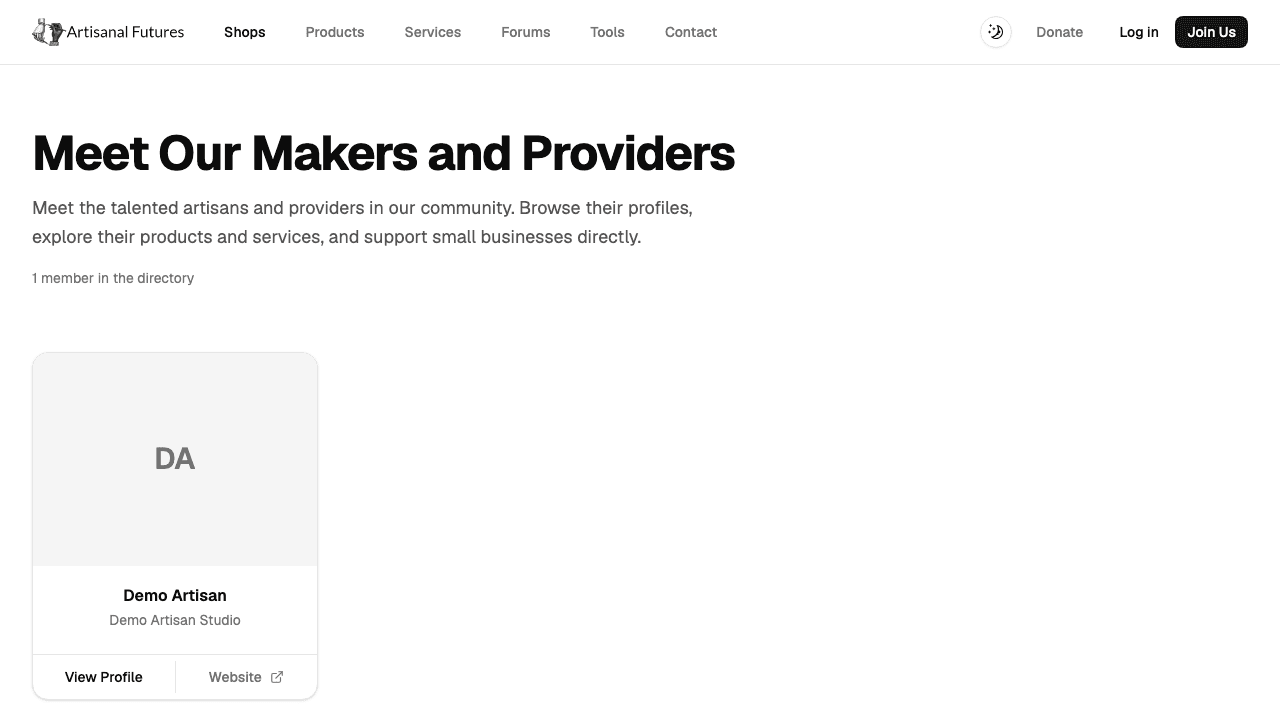
Turning off Publicly visible hides your shop's own page (visitors see "not found"), but it does not hide your individual products and services — those keep showing up on the public browse pages as long as they're marked visible themselves. See Troubleshooting for more.
Related
Once your shop is set up, head to Products and Services to start adding what you sell and offer. You can also set up a hosted Website from the left-hand menu, and post Events.