Product Sync
Keep your catalog in step with your own website automatically — nothing changes until you review and approve it.
Where to find it
Click Product Sync in the left-hand menu, between Products and Services. If you have proposed changes waiting for you, you'll see a badge with the count right on the sidebar item.
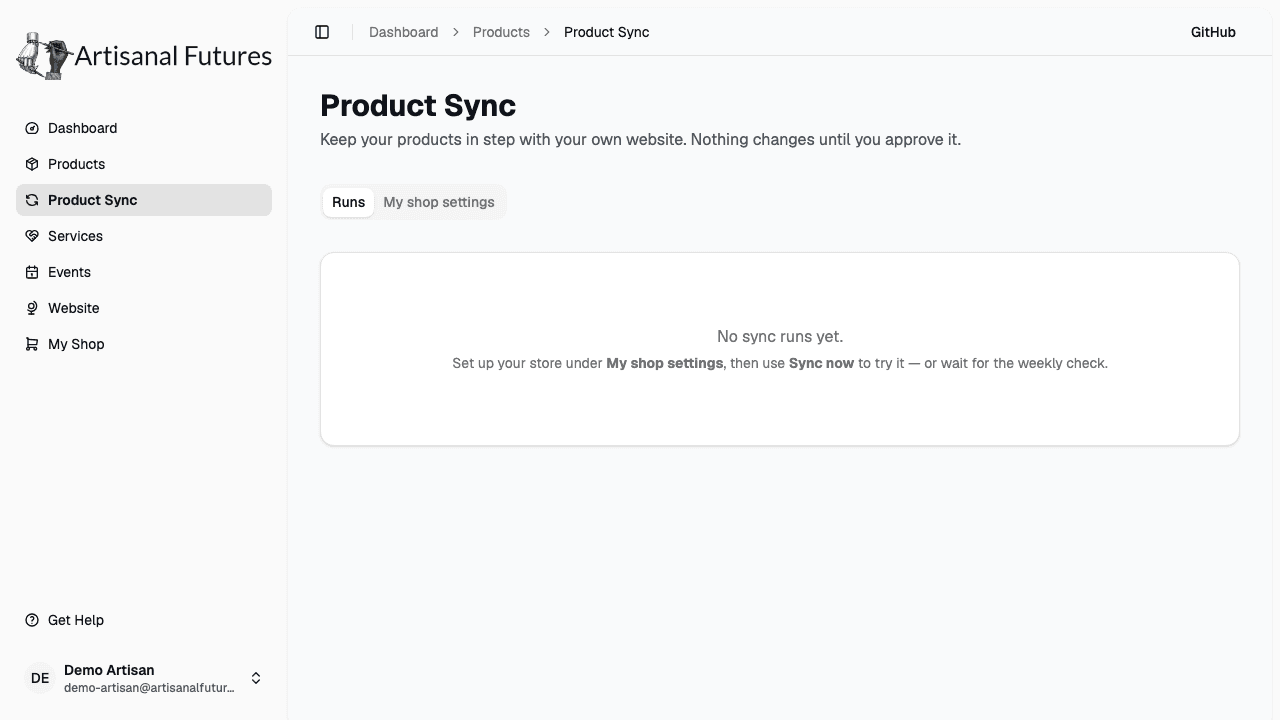
There are two pages here: the runs list (/admin/products/sync), where you turn sync on and see every sync run for your shop, and a review screen for each individual run, where you decide what to accept.
Admins see this for every shop on the platform, not just their own. See Admins for what's different there.
Turn it on
Product Sync is opt-in, per shop:
- On the Product Sync page, open your shop's sync settings.
- Choose your platform — Shopify, WordPress, Squarespace, or SimplePress.
- Optionally set a Sync URL if you want sync to check a different address than the one in your shop's Website field.
- Turn on sync.
Squarespace has no single feed for all your products, so its Sync URL is required — it has to be the exact page on your site that lists your products (e.g. yoursite.com/store), not your homepage.
If you sell through Square, or you added your products by hand, there's no automatic feed to sync from — those shops stick with manual product management.
Your Sync URL is checked before it's saved: it has to be a real http:// or https:// address on a standard port, and it can't point at a private or internal address. Plain http:// addresses are blocked unless an admin turns on an "allow insecure origin" override for your shop — ask the team if your store doesn't have a working certificate yet.
What a sync can and can't change
This is the important part: a sync only ever touches a small, specific set of fields, and it's built to leave your own curation alone.
A sync can update:
- Name
- Description
- Price
- Currency
- Image
- Product link
A sync never touches:
- Categories
- Tags
- The "featured" flag
- Visibility (whether a product is shown or hidden)
- Any field you've edited by hand — including through a bulk hide
If you've already fine-tuned a product's name or description on Artisanal Futures, sync sees that field is yours and leaves it alone from then on, even if your store's copy changes later.
Sync also never deletes a product. If something disappears from your store's feed, sync proposes hiding it here — it stays in your catalog, just not shown publicly. And if that product later comes back to your store, sync does not automatically make it public again; someone has to go republish it on purpose.
New products that sync creates come in with no categories or tags — same as a fresh import — so plan to spend a minute curating them after you approve a run.
Reviewing a sync
Running a sync never touches your live catalog by itself — it only proposes changes for you to look at. Open a run from the list to see its review screen: every proposed product shows a before/after diff for each field that would change.
- Look over the proposed creates, updates, and hidden items.
- Select or deselect individual proposals — you don't have to accept everything in a run.
- Click Apply.
Anything you leave unselected is rejected, so a run always fully resolves one way or the other — there's no partial or "still pending" leftover state once you apply. Nothing is written to your catalog until you click Apply.
The weekly automatic check
Once sync is on, Artisanal Futures checks your store on its own roughly once a week (currently scheduled for early Monday mornings) and creates a run if there's anything to review — it never applies anything by itself. Keep an eye on the Product Sync badge in the sidebar to know when one's waiting for you.
You don't have to wait for the weekly check — from the runs list you can also click Sync now to check your store immediately.
Sync now has a 15-minute cooldown per shop, so repeated clicks won't hammer your storefront. If you just ran a sync, wait a bit before trying again.
Related
See Products for adding and editing products by hand, including the one-time "bring in products from your existing store" import that sync builds on.