Services
Add, edit, and manage the services you offer alongside your products.
Where to find it
Click Services in the left-hand menu. You'll see a list of your shop's services, each with a Public or Hidden badge.
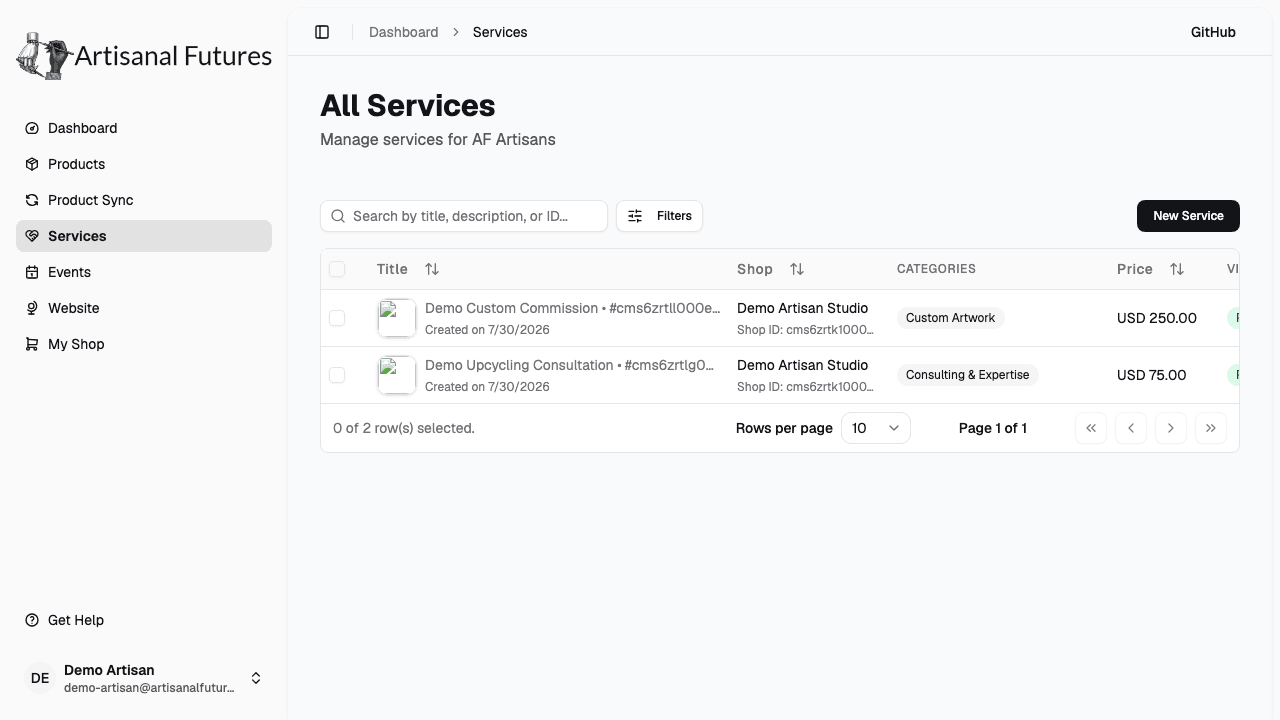
You only ever see and manage your own shop's services here.
Add a service
- Click New Service.
- Fill in Service name (required) — for example, "Pottery Workshop."
- Upload a Service image.
- Choose your shop under Select Shop (required).
- Pick one or more Categories.
- Add a Service URL if you have a booking page or listing elsewhere.
- Enter the Price (USD) in dollars — for example, type
19.99for nineteen dollars and ninety-nine cents. - Enter the Duration (minutes).
- Enter a Location Type, like "Online" or "In-Person."
- Write a Description (required — you can't save without one).
- Add any Tags that help describe the service, separated by commas.
- Visible to public is on by default — leave it on so shoppers can see the service right away, or turn it off if you want to keep it hidden for now.
- Click Save changes.
A new service is visible to buyers as soon as you create it. If you'd rather keep one out of sight for now, turn off Visible to public on its edit page. If any of your services are hidden, your Dashboard shows a reminder with a Hidden services card so you don't forget about them. See Troubleshooting.
Edit or delete a service
- To edit a service, open it from the Services list, make your changes, and save.
- To delete a service, click the trash icon next to it and confirm. This can't be undone.
How services appear publicly
Once a service is Visible to public and has at least one category, it shows up on your public shop page and in the public services catalog.
A service with no category still shows on the "all services" page — it just won't appear when someone browses a specific category.
Related
See Products for adding what you sell, and Troubleshooting if a service isn't showing up where you expect.