Products
Add, edit, and manage the products you sell, or bring them in automatically from your existing online store.
Where to find it
Click Products in the left-hand menu. You'll see a list of your shop's products, each with a Public or Hidden badge so you can tell at a glance which ones shoppers can see.
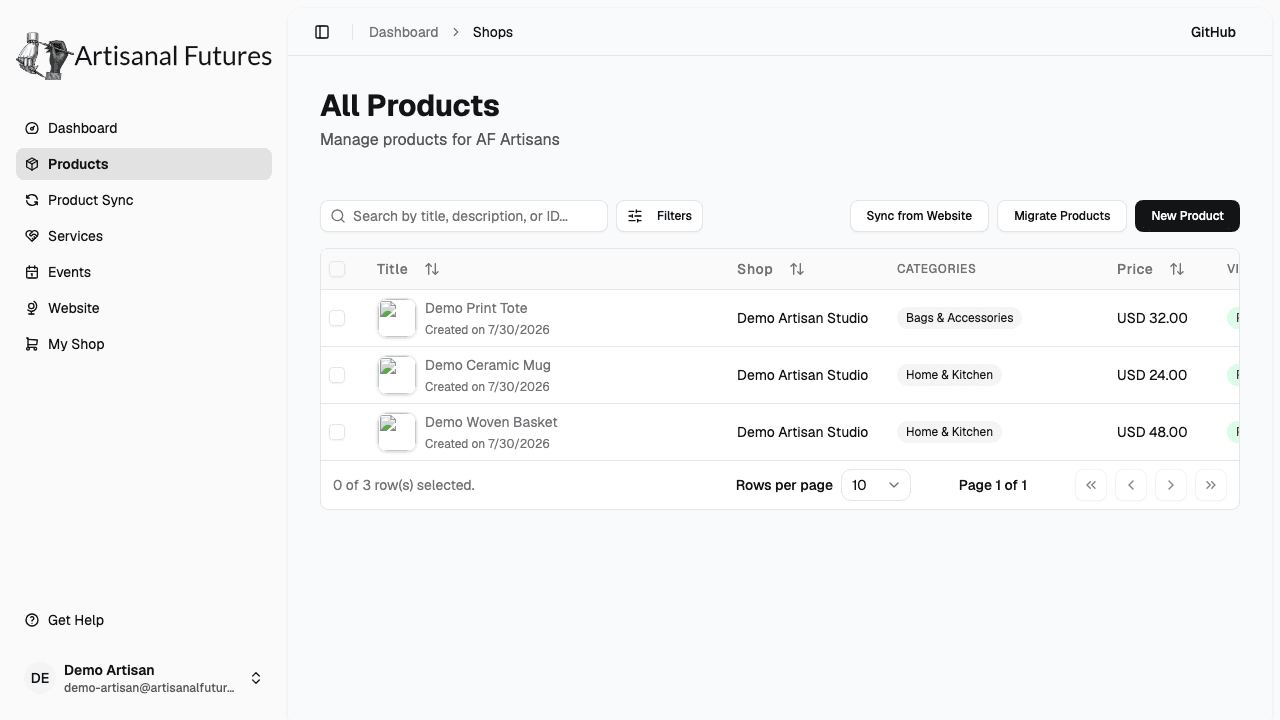
You only ever see and manage your own shop's products here.
Add a product
- Click New Product.
- Fill in Product name (required).
- Upload a Product image.
- Choose your shop under Select Shop (required).
- Turn on Visible to public if you want the product to show on your public storefront right away — new products are visible by default, so turn it off if you want to keep working on it privately first. If any of your products end up hidden, your Dashboard shows a reminder with a Hidden products card.
- Pick one or more Categories.
- Add a Product URL if the product is also sold somewhere else online.
- Enter the Price (USD) in dollars — for example, type
19.99for nineteen dollars and ninety-nine cents. All prices are in US dollars; there's no other currency to choose. - Write a Description (required — you can't save without one).
- Add any Tags that help describe the product, separated by commas.
- Click Save changes.
Edit or delete a product
- To edit a product, open it from the Products list, make your changes, and save.
- To delete a product, click the trash icon next to it. You'll be asked to confirm before it's removed — this can't be undone.
Bring in products from your existing store
If you already sell online, you don't have to retype everything — Artisanal Futures can pull your products in for you.
- Click Products in the left menu, then click Migrate Products.
- Choose Your Shop.
- Choose your Current Platform: Squarespace, WordPress, Shopify, SimplePress, or Square.
- For Squarespace, WordPress, Shopify, or SimplePress, click Fetch from my store and it pulls your products in automatically. For Square, there's no automatic fetch — instead you'll paste your product data into the box on the page, which shows you how to get it.
- Review the list of products it found.
- Click Import to bring them into your shop.
Your shop's Website field has to be filled in first (see Setting up your shop) — without it, there's nothing for the fetch to find your store with. If you use Squarespace, make sure Website points to your actual products page, not just your homepage, or the fetch won't find anything.
If you run the import again later, any products that no longer exist at your online store are automatically hidden (not deleted) from your Artisanal Futures shop. If a product you still sell has gone missing from your storefront, check its Visible to public switch.
Rather than re-running this import by hand, you can turn on Product Sync to have Artisanal Futures check your store automatically and queue up a review for you each week. See Product Sync.
How products appear publicly
Once a product is Visible to public and has at least one category, it shows up on your public shop page and in the public product catalog, where shoppers can browse and filter by category. Catalog search is forgiving, too — shoppers will still find your product even with small typos, different capitalization, or accented characters, and results are drawn fairly from across shops, so just name your product naturally rather than keyword-stuffing it.
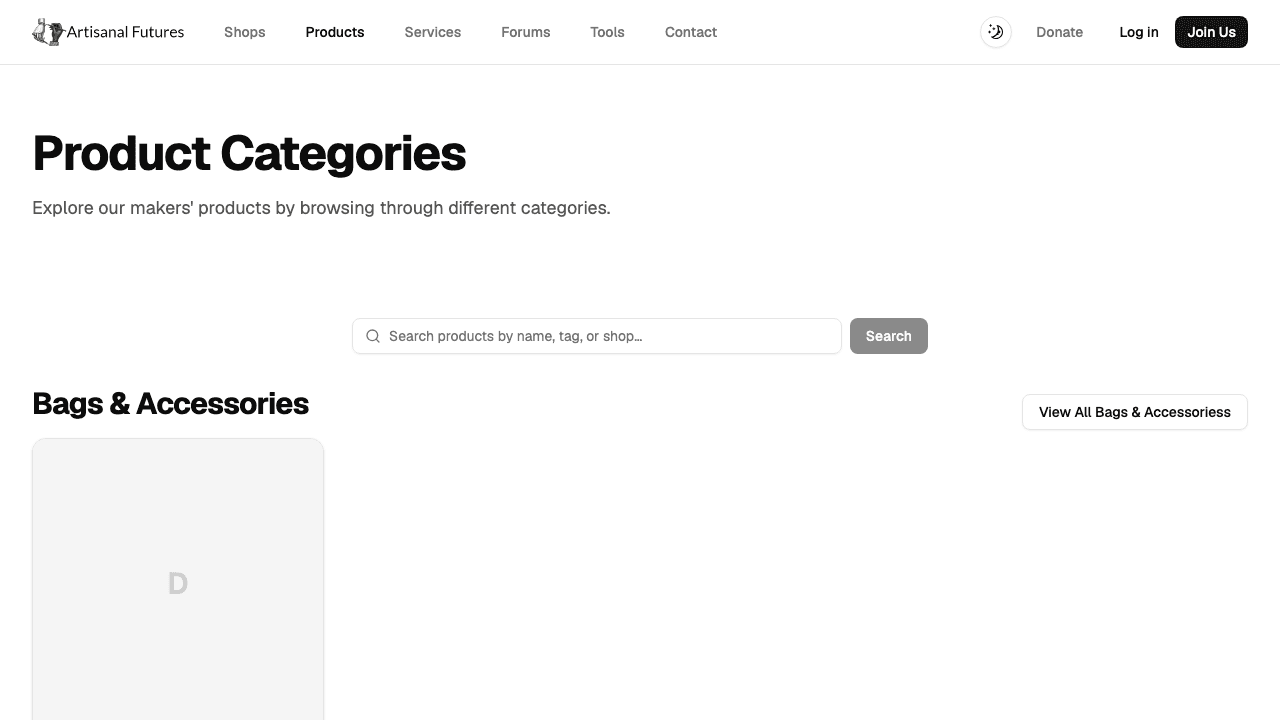
A product with no category still shows on the "all products" page — it just won't appear when someone browses a specific category. Imported products come in without a category, so it's worth checking this after an import.
Related
See Services for offering workshops or other services alongside your products, and Troubleshooting if a product isn't showing up where you expect.