Getting Started
How to accept your invite, sign in, and find your way around as an artisan on Artisanal Futures.
Welcome to Artisanal Futures
Artisanal Futures is invite-only, so if you're reading this, someone on the team has already sent you a personal invite. This page walks you through accepting it, signing in, and getting oriented once you're in.
Accepting your invite
You'll get an email inviting you to join — usually titled "You're invited to join Artisanal Futures as a Artisan", or, if the team already set up a shop for you, "You're invited to take ownership of [your shop name] on Artisanal Futures". Either way, it includes an invitation code and a Join as Artisan button.
- Open the invite email and click Join as Artisan.
- This opens the sign-up wizard with your code already filled in — you don't need to type it yourself.
- Set a password and fill in your account details.
- Answer a few questions about your business to finish your profile.
- Once you finish, you're signed in automatically and taken to your welcome page.
You must sign up using the exact same email address your invite was sent to. A different email — a work address instead of a personal one, or a typo — will be rejected. Your invite also expires 30 days after it's sent and can only be used once, so accept it before then.
Signing in later
Once you've accepted your invite, come back and sign in any time:
- Click Log in near the top of the Artisanal Futures site.
- Enter your Email and Password.
- Click Login.
The Sign in with Google, Sign in with Discord, and Sign in with Auth0 buttons only work if you've already signed in before — they can't create a new account. If this is your first time, use your email and password.
Forgot your password? Click Forgot your password? on the sign-in page, enter your email, and follow the link in the reset email (check spam if it doesn't show up quickly). See Account settings for more on managing your password.
Your welcome page and getting-started checklist
The first time you sign in, you land on your welcome page. It shows a short checklist:
- Complete your profile and shop details
- Add your first product
- Add your first service
- Set up a website
Each item shows whether it's done yet and gives you a button to jump straight to it.
Your Dashboard
After that, your home base is the Dashboard. It shows:
- Your shop's name and logo, with a friendly greeting.
- Quick stats: how many Products and Services you have, and whether your Website is active.
- A View Public Profile button, so you can see exactly what shoppers see when they visit your shop.
- An Edit Shop button that takes you straight to your shop details.
- Nudges — for example, a reminder to add your first product if you haven't yet, or to set up a free website.
- Needs attention cards, when something needs fixing — for example, Hidden products or Hidden services if you have items that aren't visible to buyers yet (links to Manage Products or Manage Services), or Products missing photos if any of your public products don't have a photo (links to Manage Products).
- Shortcuts to the community forum and to importing products from your existing online store.
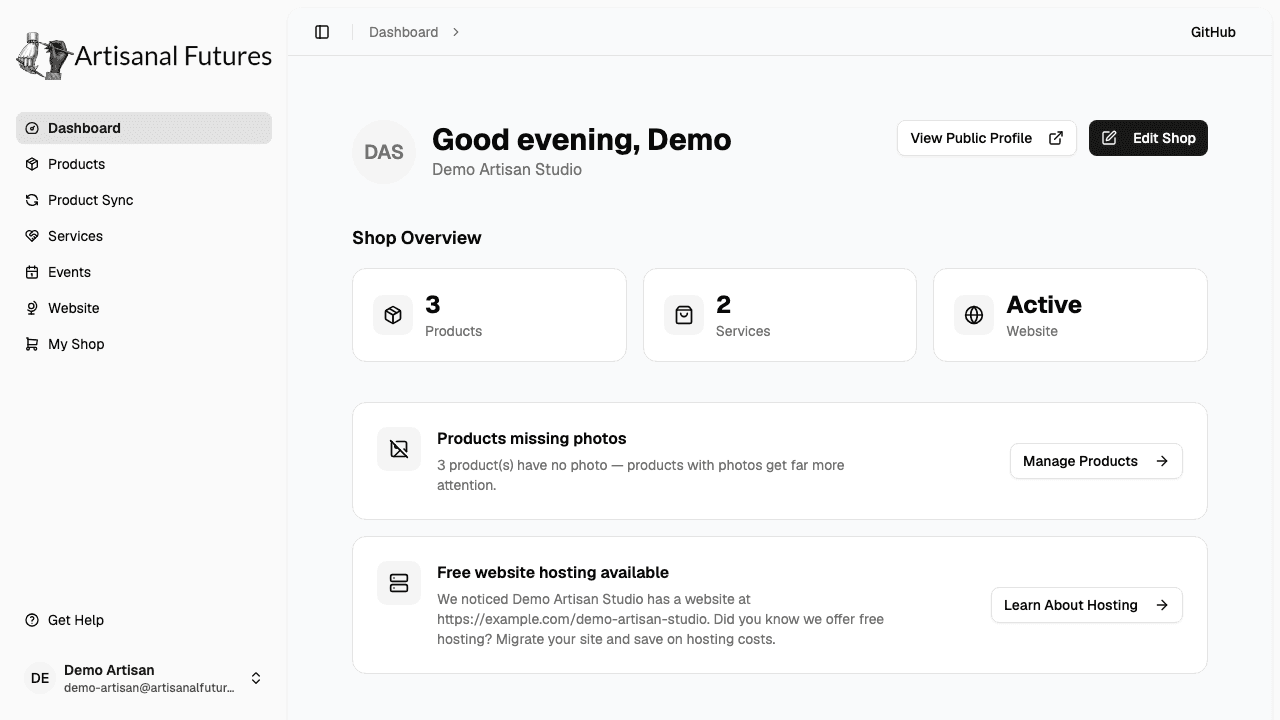
The screenshots on this site show demo data, like "Demo Artisan Studio." Your dashboard will show your own shop's name and numbers instead.
What's in the sidebar
Every page you need lives in the menu on the left side of the screen:
- Dashboard — your home base, described above.
- Products — add, edit, and manage everything you sell. See Products.
- Services — add, edit, and manage the services you offer. See Services.
- Events — create and manage upcoming events for your shop. See Events.
- Website — request a free hosted website for your shop.
- My Shop — open your shop to edit its name, description, logo, contact info, and more. See Setting up your shop.
You only ever see and manage your own shop — that's by design. If someone's mentioned a feature you don't see in your menu (like Shops, Categories, Users, or Invites), that's because those are for the Artisanal Futures team only.
Scroll to the bottom of the menu and click your profile picture to reach your account settings, or click Get Help any time you're stuck.
Where to go next
- Setting up your shop — fill in your shop's name, description, contact info, and more.
- Products — add what you sell, by hand or by importing from your existing store.
- Services — offer workshops, commissions, or other services.
- Events — post upcoming events.
- Community forums — connect with other artisans.
- Account settings — manage your name, password, and linked sign-in providers.
- Troubleshooting — common problems and how to fix them.