Account Settings
Manage your name, avatar, password, and linked sign-in providers — separate from your shop's own details.
Account settings vs. your shop
Your account settings and your shop's details are two separate things. Your account covers your own personal sign-in info — your name, your photo, and your password. Everything about your shop itself — its name, logo, and photo — is edited under My Shop instead. See Setting up your shop.
If you're trying to change your shop's name, logo, or photo and can't find it under Account, that's expected — those live under My Shop, not your account settings.
Where to find it
Click your profile picture in the sidebar footer, then click Settings in the menu that opens. That takes you to the Account page, which has two tabs.
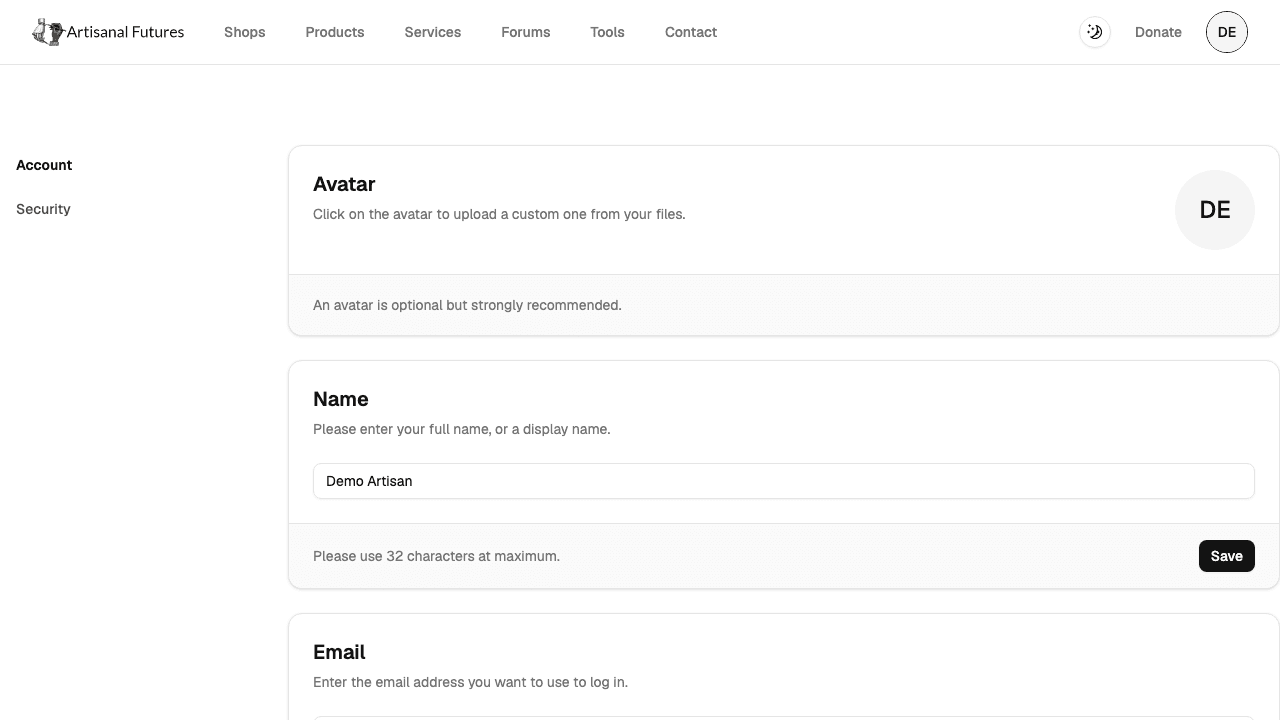
The Account tab
Avatar
At the top of the Account tab is an Avatar card. Click on the avatar to upload a custom one from your files — it's cropped square automatically and stored on the platform's storage. Your new avatar shows up immediately in the top-right menu, the forums, and admin tables.
Once you have an avatar, the card's menu also offers Delete Avatar, which removes it and falls back to your initials.
Name and email
- Name — your display name.
- Email — shows your sign-in email.
Changing your email
Enter the new address and save.
- If your current email is unverified (the common case), the change applies immediately — you'll sign in with the new address from then on.
- If your current email is verified, a confirmation email is sent to your current address first, and the change applies once you approve it.
If you enter an email that already belongs to another account, the form looks like it succeeded but nothing actually changes — that's a deliberate privacy protection, not a bug. If your email "didn't change," check whether that address is already in use on the platform.
The Security tab
- Change Password — enter your current password, then your new password (at least 8 characters), and confirm it.
- Linked Providers — shows which sign-in services (Google, Discord, Auth0) are connected to your account.
- Sessions — shows your active sign-in sessions.
Change your password
- Click your profile picture, then click Settings.
- Click the Security tab.
- Click Change Password.
- Enter your Current Password, then your New Password (at least 8 characters), and confirm it.
- Save.
What you can't change yourself yet
- Notification preferences — there's no page for this yet.
If you need this changed, contact the Artisanal Futures team (see Getting help).
Related
See Getting Started for signing in and resetting a forgotten password, and Troubleshooting for other common issues.