Events
Create, edit, and delete upcoming events for your shop.
Where to find it
Click Events in the left-hand menu. Your Events list shows only your own shop's events — you can create, edit, and delete them there.
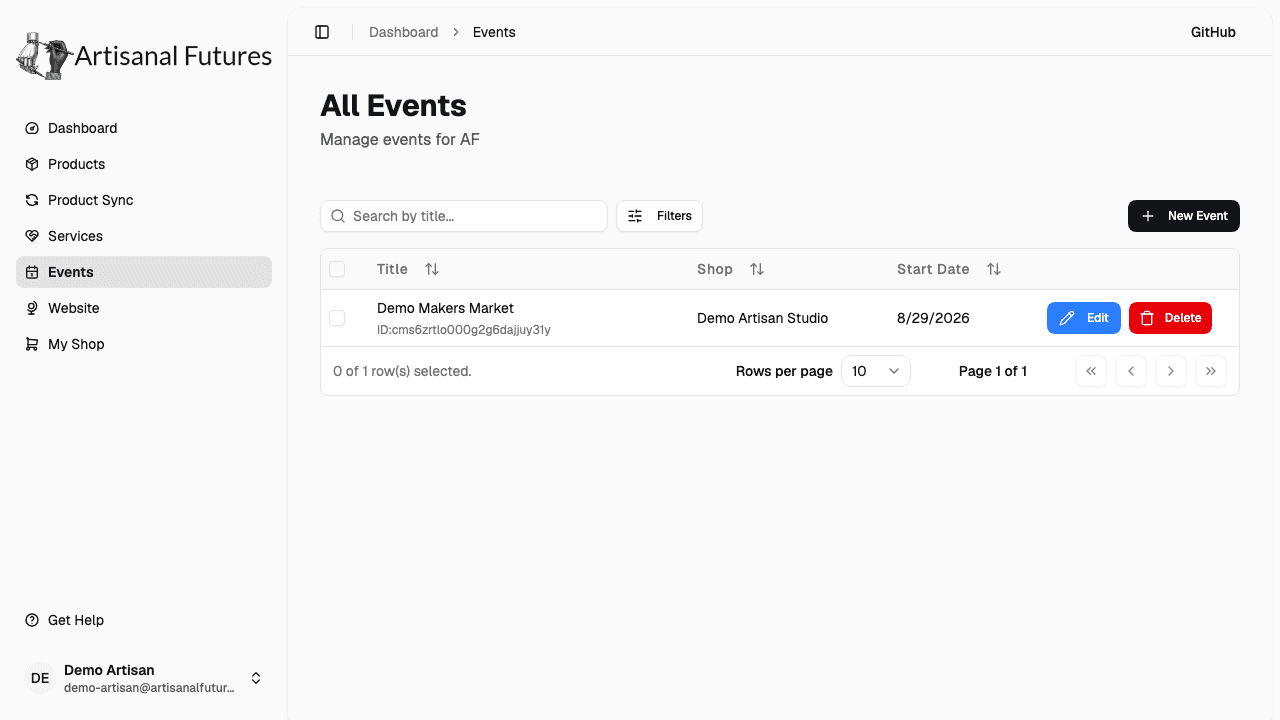
Create an event
- Click New Event.
- Fill in Event Title (required).
- Write an Event Description (required).
- Pick a Start Date (required).
- Pick an End Date, if the event runs for more than a moment.
- Add a Location.
- Add a Call to Action Link — for example, a link to buy tickets or RSVP.
- Upload an Event image.
- Choose your shop under Select Shop (required).
- Turn on Keep on homepage if you want the event to stay featured on the Artisanal Futures homepage even after it's ended.
- Click Save changes.
The End Date has to be on or after the Start Date, or the form won't let you save.
Edit or delete an event
- To edit an event, open it from the Events list, make your changes, and save.
- To delete an event, click the trash icon next to it and confirm. This can't be undone.
Where events show up
Your events appear on the Artisanal Futures homepage, alongside your shop's name, while they're upcoming or still running. Once an event's end date has passed, it drops off the homepage — unless you turned on Keep on homepage, which keeps it featured there indefinitely.
Related
See Setting up your shop if you haven't filled in your shop's details yet, since every event needs a shop attached to it.