Community Forums
Browse and join artisan communities, post, comment, and vote in the Artisanal Futures forums.
Where to find it
Click Community Forum from your Dashboard, or go to artisanalfutures.org/forums.
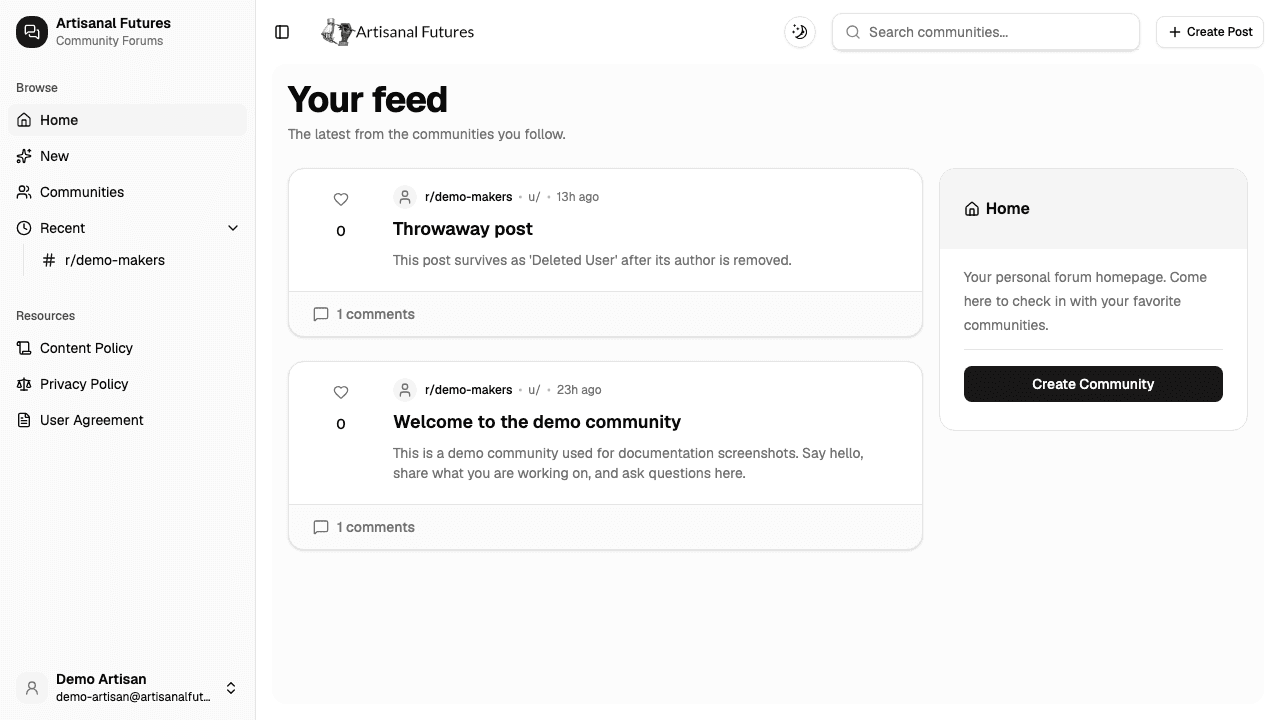
Browsing
- Your feed (
/forums) shows the latest posts from communities you follow. If you're not signed in, or haven't joined any communities yet, you'll see a general feed instead. - All Communities (
/forums/communities) lists every community on the platform.
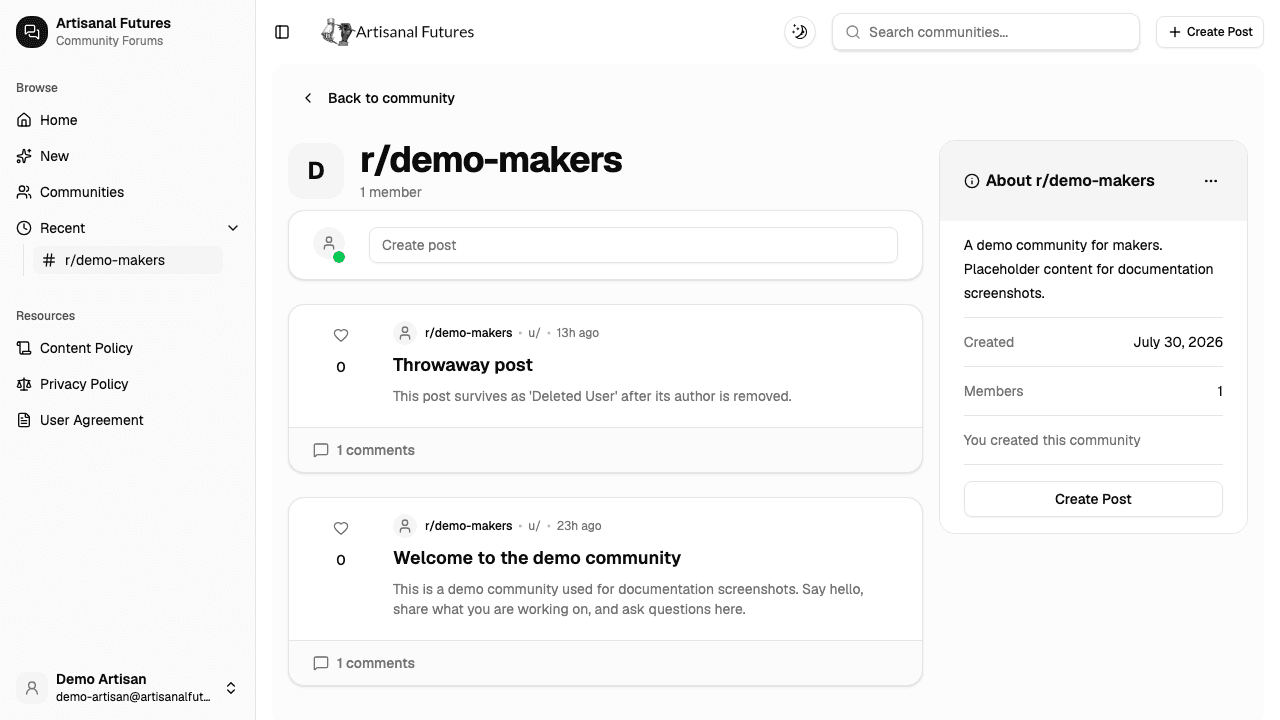
Each community is called a "subreddit" under the hood and shown with an r/ prefix — for example, r/demo-makers.
Joining a community
Open a community's page and click Join to post. If you're not signed in yet, you'll see Login to join community instead — sign in first, then join.
Once you've joined, the button changes to Leave community, which you can click any time to unsubscribe.
You have to join a community before you can post in it. If you try to post without joining first, it will be rejected — click Join to post on the community's page first.
Creating a community
- Click Create Community from the All Communities page (or go to
/forums/r/create). - Type a name for your community — 3 to 21 letters.
- Click Create Community.
Only the person who created a community (or an Artisanal Futures admin) can rename it afterwards, from the ⋯ menu in the community's About panel — so double-check the spelling before you submit.
Posting
- Go to Create Post (linked from the forums pages), or open a community you've joined and start a post there.
- Choose which community you're posting to — you can only choose communities you've already joined.
- Write a title.
- Use the editor to write your post. You can add headings, lists, links, images, tables, and embedded content, not just plain text.
- Submit to publish your post.
Commenting and voting
- Open any post to read it and add a comment in the text box below it.
- Posts have upvote and downvote arrows so you can show what you found helpful.
- Comments can also be voted on and replied to.
Related
See Getting Started for how the rest of the sidebar works, and Account settings for managing your own profile.