Surveys and guest surveys
Review artisan business surveys and guest interest surveys from Admin → Surveys and Admin → Guest Surveys.
Two different surveys
The platform collects two unrelated kinds of survey, each with its own admin page:
- Surveys (
/admin/surveys) — an artisan's business-profile survey, created when they onboard as an Artisan and tied to their shop. - Guest Surveys (
/admin/guest-surveys) — a short interest survey filled out by someone who joins as a Guest, with no shop involved.
Both pages are admin-only.
Artisan surveys — /admin/surveys
Go to Surveys in the admin sidebar.
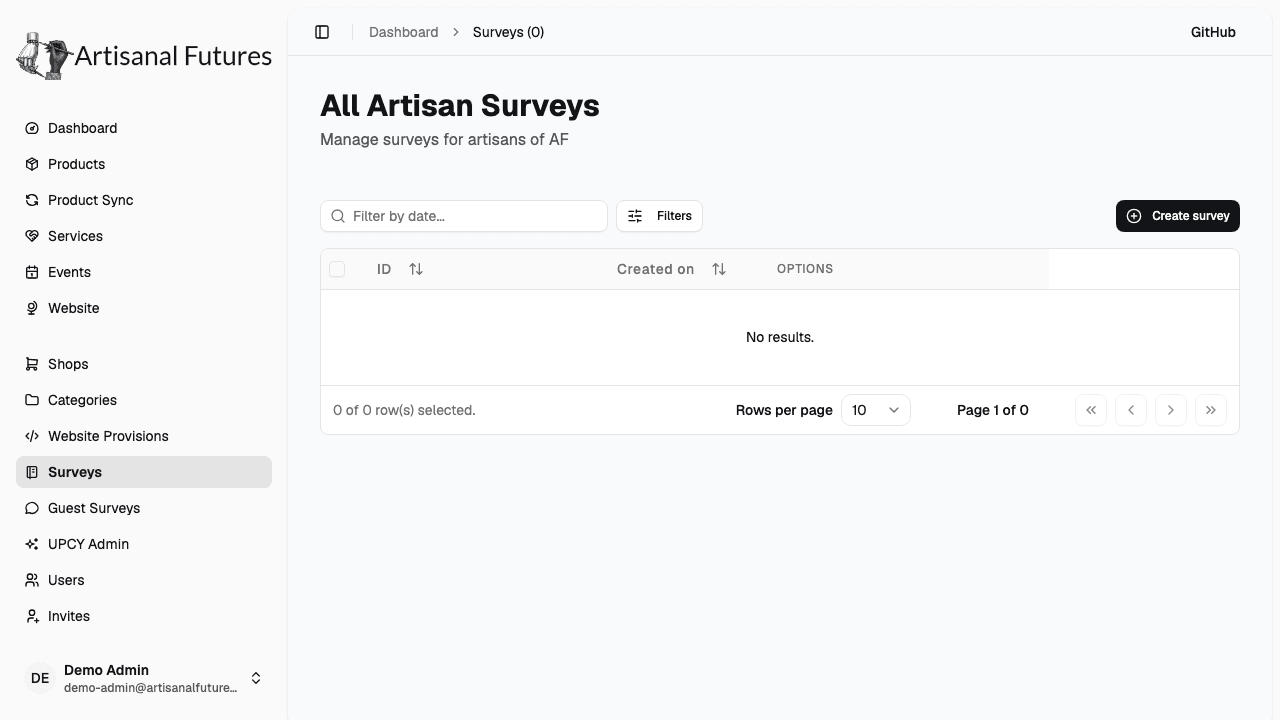
Each survey is linked to one shop and one owner (the artisan), and holds:
- Processes, Materials, Principles, Description — free-text fields about the artisan's practice
- Form settings — six on/off toggles: Unmoderated Form, Moderated Form, Hidden Form, Private Form, Supply Chain, Messaging Opt-in
The table shows the survey's ID, owner ID, and creation date. From there you can:
- View — opens a read-only dialog with every field above, plus metadata (ID, created/updated timestamps)
- Update — opens the same form used to create a survey, letting you reassign its shop or owner and edit every field and toggle
- Delete — removes a single survey; you'll be asked to confirm
You can also select multiple rows and use the bulk Delete action in the selection bar.
Guest surveys — /admin/guest-surveys
Go to Guest Surveys in the admin sidebar.
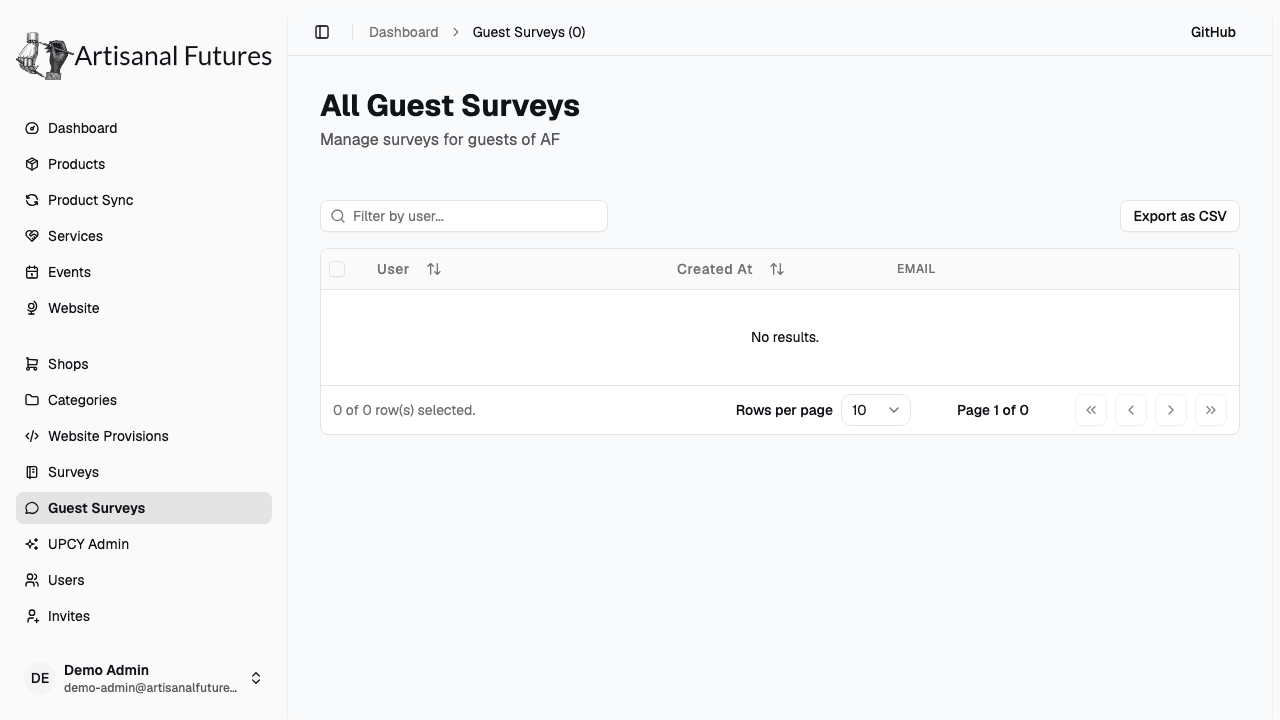
A guest survey captures a Guest's name, email, country, state, and their stated artisanal practice (plus a free-text "other practice" field). It isn't linked to a shop.
The table shows the guest's name/email, when they submitted it, and a View Details button with the full record. Select rows and use the bulk Delete action to remove them, or click Export as CSV to download every guest survey as a spreadsheet.
Guest surveys have no edit form and no per-row delete — the only actions are viewing details, exporting to CSV, and bulk-deleting selected rows.
Related
Guest surveys and artisan surveys are both created during sign-up via invite — a Guest invite leads to a guest survey, an Artisan invite leads to a shop and its survey.