Website provisions
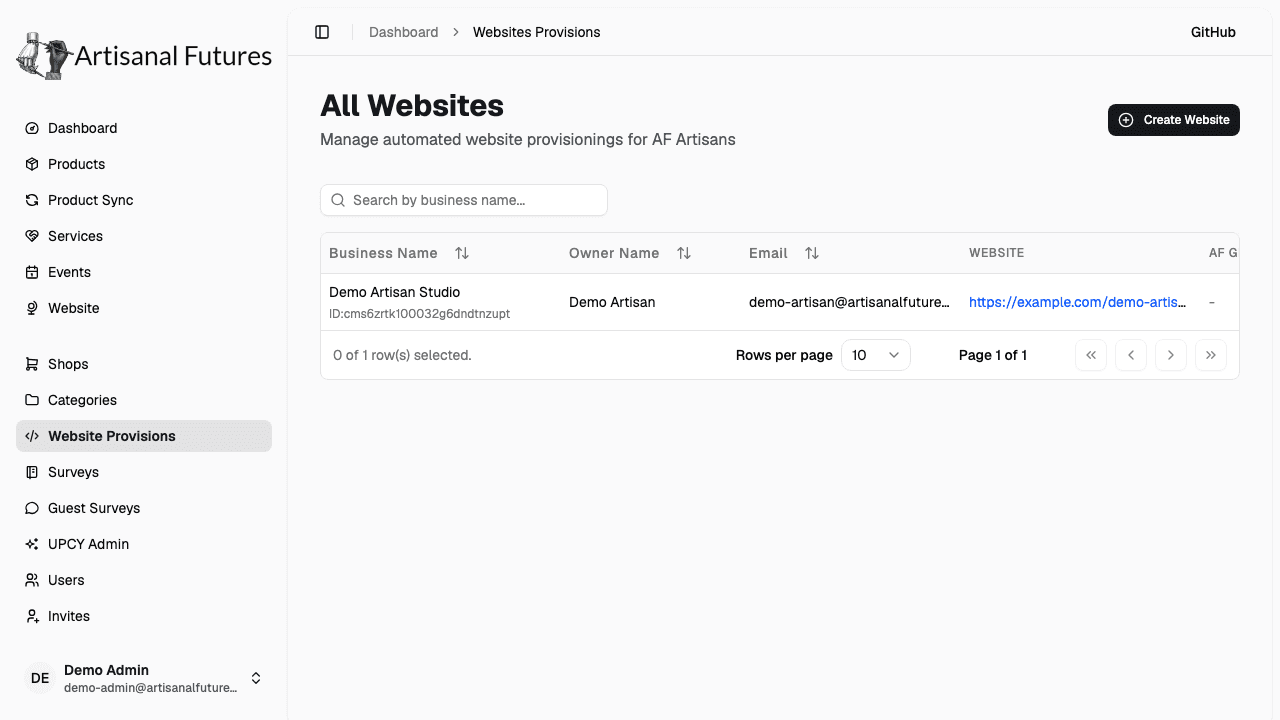
Build and manage automated SimplePress websites for artisan shops, from Admin → Website Provisions.
What a provision request is
A website provision is one automated website build for one shop — Artisanal Futures calls out to SimplePress, which builds a headless storefront site for the shop (business name, contact email, logo) and hands back a link the shop owner uses to claim the site as their own. Each shop can have at most one provision at a time.
Where to find it
Go to Website Provisions in the admin sidebar (/admin/website-provisions). This page is admin-only.
The status flow
A provision moves through these states:
- PROVISIONING — the request to SimplePress is in flight.
- ACTIVE, not yet claimed — SimplePress has built the site; it's shown as "Ready — claim your site." The owner has a claim link and hasn't used it yet.
- ACTIVE, claimed — the owner claimed the site on SimplePress with the matching email; it's live.
- FAILED — the build failed. This is safe to retry — SimplePress treats retries as idempotent, so re-requesting the same shop's site won't create a duplicate.
The ProvisionStatus enum holds several more values (PENDING, BUILDING, DEPLOYING, SUSPENDED, DELETING, DELETED). Of those, only PENDING is ever written, and only by an older, WordPress/Coolify-based provisioning path that isn't what this form runs — you won't see any of them from a normal SimplePress build here.
Building a site for a shop
- Click Create Website (or, on an existing row, the create action if that shop has no provision yet).
- Pick the Shop (skip this if you opened the form from a specific shop's row — the shop is already set).
- Confirm or edit the Contact email. It's prefilled from the shop's onboarding info, but you should change it whenever you're setting this up on behalf of an artisan — the claim link and SimplePress invite go to whatever email is in this field, and it needs to reach the actual shop owner, not you.
- Click Build Site.
Building can take a few minutes. Once it's done, the shop's row shows the result.
Managing an existing provision
Once a shop has a provision, its row offers:
- Claim Link — opens the SimplePress claim URL in a new tab (only shown while the site is built but not yet claimed).
- Email — opens a
mailto:link to the shop's contact email, for following up directly. - If you reopen the build form for a shop that already has a provision, the button reads Rebuild / Resend Claim Email instead of "Build Site" — use it to retry a failed build or resend the claim link for a site that's ready but unclaimed.
- Delete — permanently removes the provision record (with a confirmation prompt). If the shop still has an old Coolify-based deployment attached, deleting also attempts to tear that down.
Deleting a provision cannot be undone. If the site has already been claimed and is live, deleting the provision record here does not un-publish the SimplePress site itself — it only removes Artisanal Futures' record of it.
Related
Artisans can also request their own site from their shop's Website page — this admin page is for building or fixing one on their behalf, or handling shops an admin manages directly.